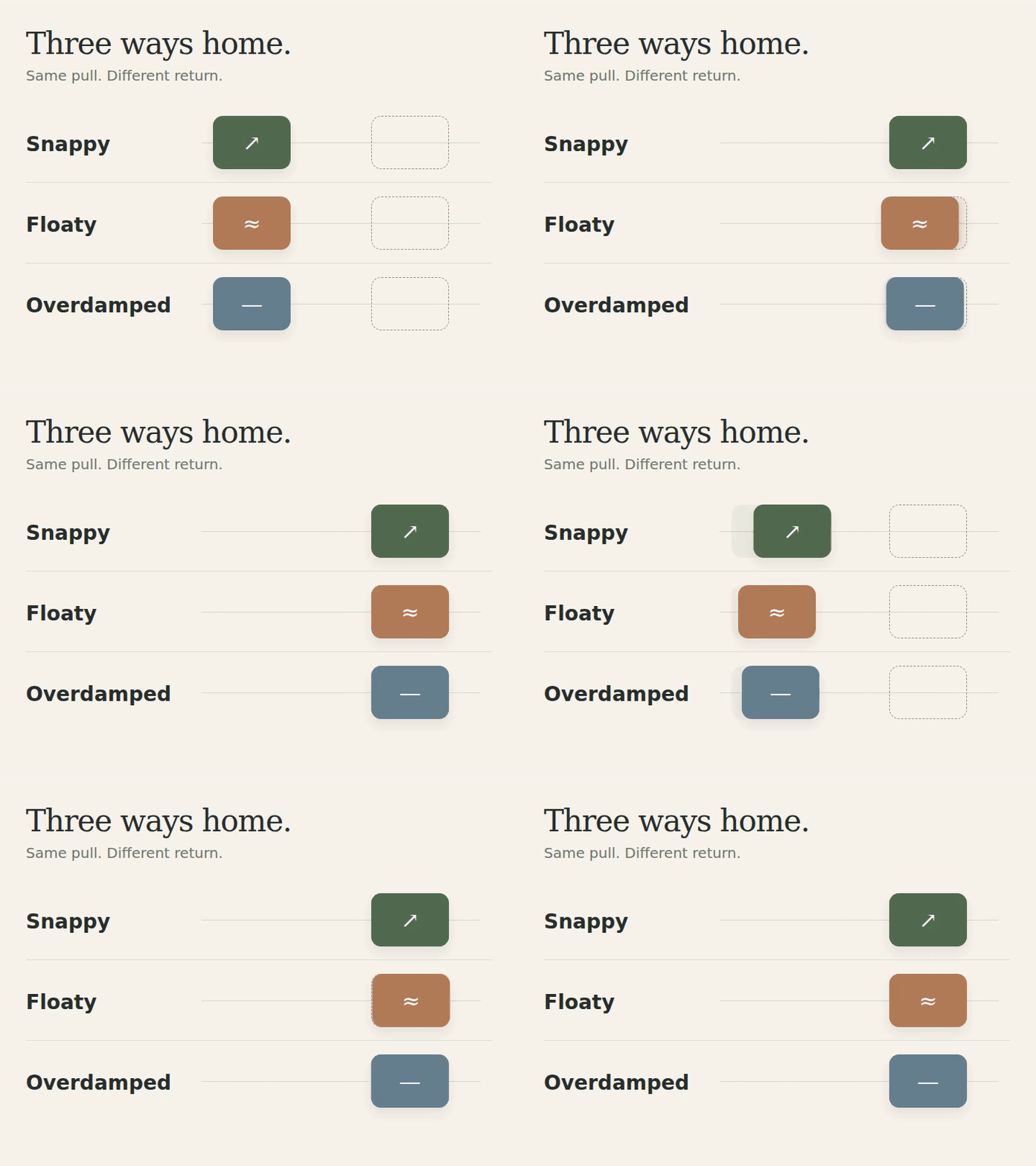
If you’re teaching spring motion or choosing how an interface card should return, build a small playground. Drag the card, compare three presets, then keep the settings you want to use in the animation.
Start with a playground
Give a coding agent this prompt and ask for a standalone HTML file you can open in a browser. No Voyager account is needed to use the downloaded playground.
Build a spring-animation playground for a designer choosing how a card returns to its resting position. Save a self-contained index.html that opens offline, with no external fonts or dependencies.

Make the motion itself the lesson: a large draggable rounded card, its resting-position marker, a short fading trail, and Replay. Drag and release the card to feel its return. Include three presets: Snappy (stiffness 360, damping 30, mass 1), Floaty (90, 8, 1), and Overdamped (180, 36, 1). A Compare view should release all three together so the difference is visible. Keep labels large and the composition calm, with a warm paper background, dark ink, and a different restrained accent for each preset. Avoid a generic dashboard.

Expose stiffness, damping and mass as keyboard-accessible controls with live values. Explain each in one short sentence. Use the same deterministic damped-spring calculation for every preview, starting release with zero velocity. Preserve settings across refreshes, respect reduced motion, and work at 342px width. Offer Copy settings and Download settings as JSON. Do not contact an AI model when controls change.

Use one shared spring function that can also be sampled at exact frame times for a later MP4. Save readable source and a short README. Check dragging, replay, presets, persistence, and narrow-screen layout.
Download the playground and editable source. Open index.html, choose Compare, and press Replay. In Playground view, drag the card and release it. The three controls change different parts of the return:
- Stiffness: how strongly the spring pulls toward its resting position.
- Damping: how much resistance removes the bounce.
- Mass: how heavy the moving card behaves.
Hold two values fixed while you change the third. More damping removes overshoot, but a heavily damped return can also feel slow. A shorter animation duration is a different decision. Motion’s spring documentation describes these parameters and sampling a spring at specific times.
Keep the choice with the project
Claude Artifacts can already provide interactive controls, persistent storage, and connected tools. A standalone HTML playground is useful on its own. In Voyager, we connected the controls to the local video project so the selected values could become a render request beside its source and output files.
Open the folder as a Voyager project with a configured coding agent. In Settings → Widgets, enable widgets and allow agent-created widgets. Then use this adaptation prompt:
Turn this spring playground into a persistent panel in this Voyager project. Keep its spring calculation, presets and dragging. Save the current settings and relative release position so they survive reopening the panel. Local controls and Replay must not start agent turns.

Add “Render this motion.” On click, send the chosen stiffness, damping, mass and relative release position to this conversation. Render a six-second 1280×720 MP4 using the same spring function at 30fps: two three-second replays, each holding the start for half a second before release. Keep settings JSON and editable source beside the video. Show the real submission status. Wait for my click before rendering.
Description / transcript
In Voyager, local controls change from Floaty to stiffness 180, damping 12 and mass 1. Closing and reopening the panel keeps the settings. Render this motion sends the choice to the agent. The returned video plays in the project, followed by its two spring replays. Rendering waits and a video-label correction are omitted.
We chose stiffness 180, damping 12, mass 1 for a return with a little overshoot. Reopening the panel kept those values. The button sent them, along with the release position, to the agent; the six-second export used the same spring function.
Choose a return that settles before the replay boundary. With very low damping, lengthen the cycle so a still-moving card does not suddenly jump back. Keep the same release distance relative to the stage when exporting at a larger size.
The download includes the offline playground, the Voyager widget source, and the rendered example. The HTML runs locally; creating or changing the widget and rendering through Voyager require your configured agent. We build Voyager. This example uses local rendering without paid media generation; Remotion’s license terms apply to the video renderer.
Make your next project in Voyager
Create an account, download Voyager, and start making.