One cap-color change can quietly redraw the label on a product photo. Repeat that across a campaign and every small request becomes another round of checking the whole image.
Ideogram 4.5 promises more precise image editing with less drift. We put regular and high precision through the same three changes on a fictional VELA tonic photograph. High precision protected the label better, but missed the final change. Here are the prompts, the side-by-side results and a way to stop regenerating once the photo is approved.
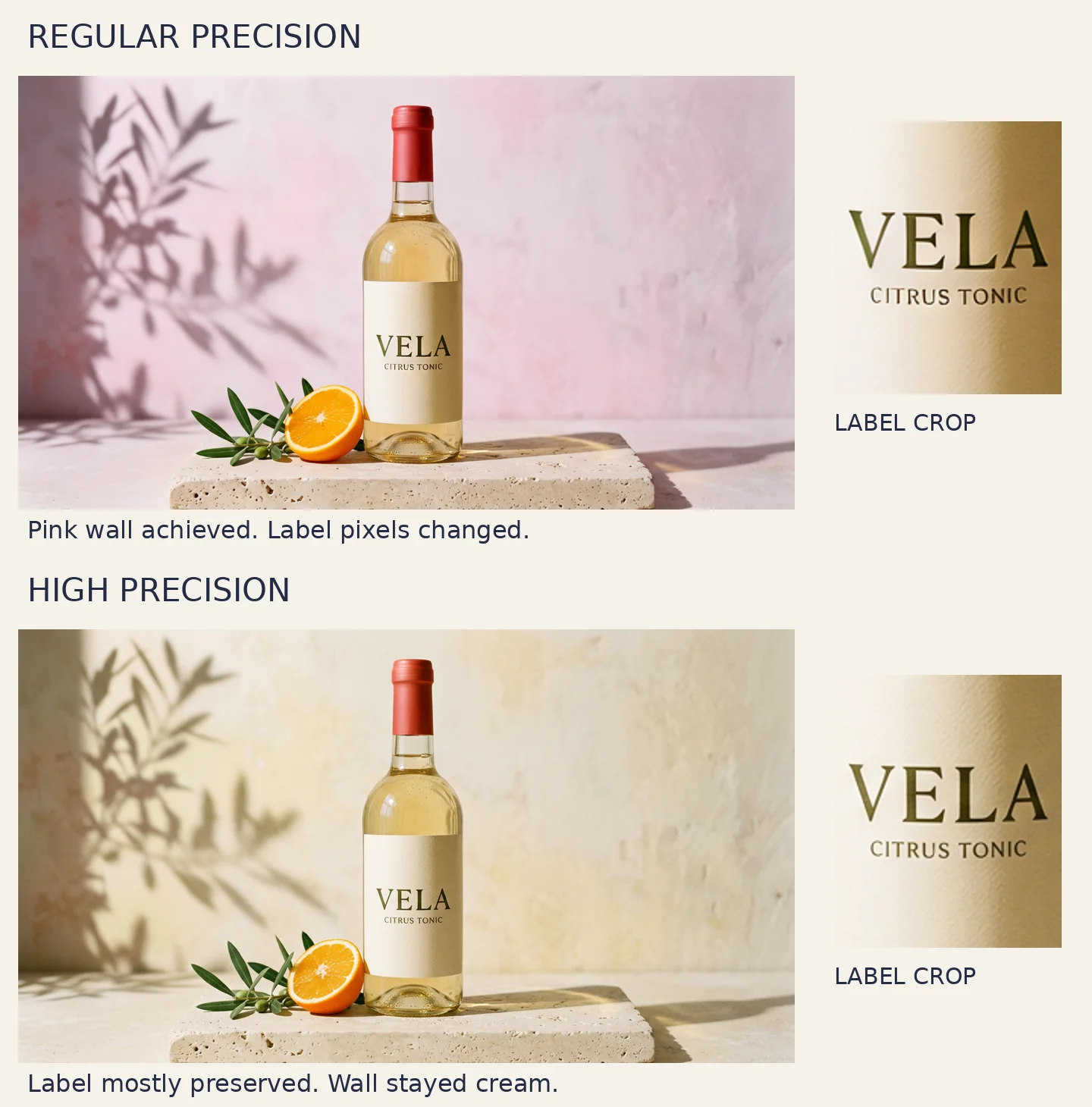
Compare regular and high-precision image edits
Start both chains with the same image. Feed each result into the next request, keeping its precision setting unchanged. These are the prompts we used:
Change only the olive-green foil cap to matte terracotta red. Keep the bottle shape, VELA label, liquid, lemon, leaves, lighting, shadows, camera and every other part of the image unchanged.
Replace only the cut lemon half with a cut orange half in the same position and at the same scale. Keep the bottle, terracotta cap, VELA label, leaves, lighting, shadows, camera and every other part of the image unchanged.
Change only the plaster wall color from warm cream to pale dusty pink. Preserve its existing leaf shadows and texture. Keep the bottle, cap, label text, orange, leaves and limestone plinth unchanged.
The Ideogram 4.5 editing API on fal exposes edit_precision. We used regular and high, both with high rendering quality and the same seed. Precision and quality are separate settings.
Check two things, not just one
First: did the requested change happen? Regular precision changed the cap, fruit and wall. High precision changed the cap and fruit, but left the wall cream.
Second: what moved that should have stayed still? In a fixed crop around the label, high precision preserved 93.4% of the original RGB pixels exactly after all three edits. Regular precision preserved 0.2%. Small shading differences count as changes here; this does not mean the regular label became unreadable. The crops above show the distinction.
Treat this as a useful example, not a model ranking. A result can preserve the product beautifully and still fail the brief. Check the full image and a protected detail before accepting it.
Download every output, the prompts and the editable master to compare the original PNGs at full size.
Stop regenerating once the photograph is approved
For the next revision, we wanted a different headline, not another photograph. We used Voyager Design to put the accepted regular-precision result on one layer and the campaign copy on separate live text layers.
Make an editable layout from this approved photograph. Keep the photograph on its own layer. Add a separate live headline and offer beneath it. Save a .vdesign master.

Change only the headline to “A little sunshine. A little bite.” Keep the photograph and offer unchanged. Inspect the native visual diff before exporting.
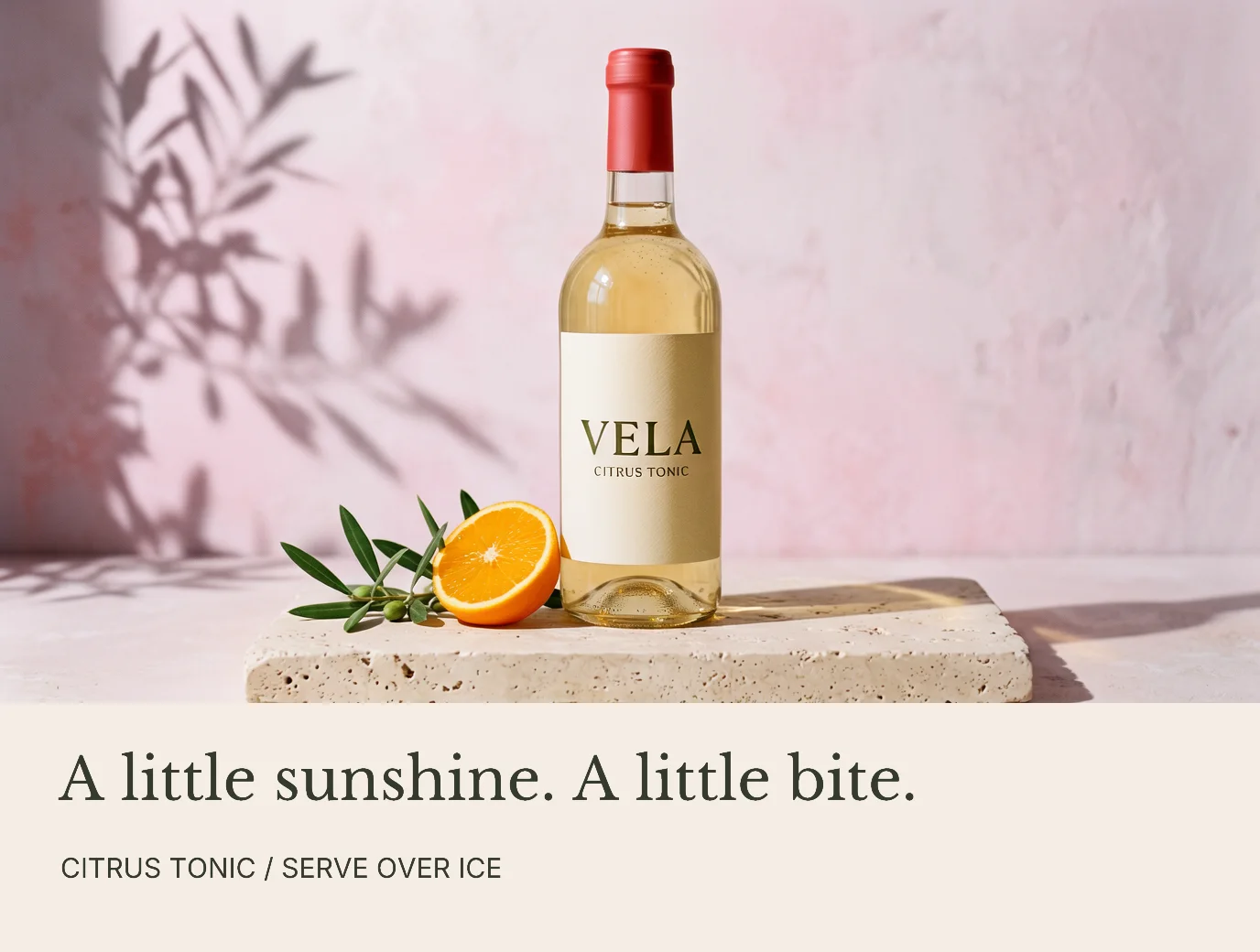
Voyager’s native diff reported one changed region in the headline and no changes outside the edited layer. The photo pixels stayed identical. A layered editor can give you this separation too; Voyager lets the agent make the edit and inspect its visual consequences in the same workflow.
For your next product-image edit, check two things separately: did the change happen, and did the protected details survive? Higher precision helped with the second question here, but did not guarantee the first.
Once the photograph is approved, put headlines and offers on live text layers. In Voyager, the agent can revise that copy and check the visual diff without touching the photograph. You get an image you can use today and a campaign master you can keep changing.
Make your next project in Voyager
Create an account, download Voyager, and start making.